
Native Apps Team · Toronto
Scan it once. It files itself.
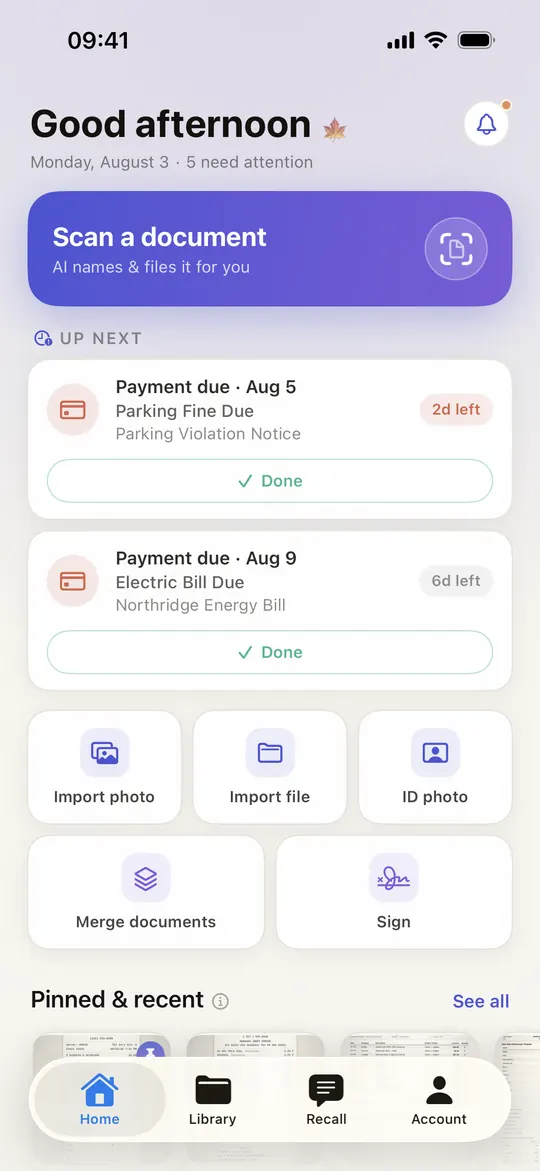
NativeScan reads what you just scanned, gives it a real name, drops it in the right folder, and remembers the dates you’d rather not.

Free. No account. iPhone, iOS 18.6 or later.
See how it worksFeaturing
NativeScan
A scanner that does the boring half.
AutoName
It names itself.
It reads the page, finds the line that looks like a title, and writes a real filename. That’s the whole trick.
AutoSort
It files itself.
Receipts, invoices, medical, legal. The folder it belonged in all along.
AutoSort is a Pro feature.
Recall
Ask your paperwork.
Plain English in, plain English out — answered from your own scans, with the document it came from.
AI can be wrong. Never rely on it for legal, medical, financial or immigration decisions.
Key dates
It remembers the deadlines you won’t.
Due dates and expiry dates lifted off the page and put on your home screen. Pro can also nudge you three days out.
A date can be misread or missed entirely. Don’t make this your only reminder.
Your library
No account. Ever.
Your scans sit on your phone. No sign-up, no copy on a server, no sync — which also means nothing to recover if you lose the phone. That’s the trade, and it’s worth knowing before you scan your passport.
When an AI feature runs, the page image or its text goes through our Cloudflare proxy to Google Gemini, gets processed, and isn’t kept. Details in the AI Use Disclosure.
Free and Pro
Free is the whole scanner.
Pro lifts the ceiling on the parts that cost me money to run.
Free
No account. No trial to start.
- Unlimited scanning and unlimited documents
- Export as JPEG, PDF or DOCX — all three
- Folders with your own colours and icons
- Merge, sign, and passport / ID photos
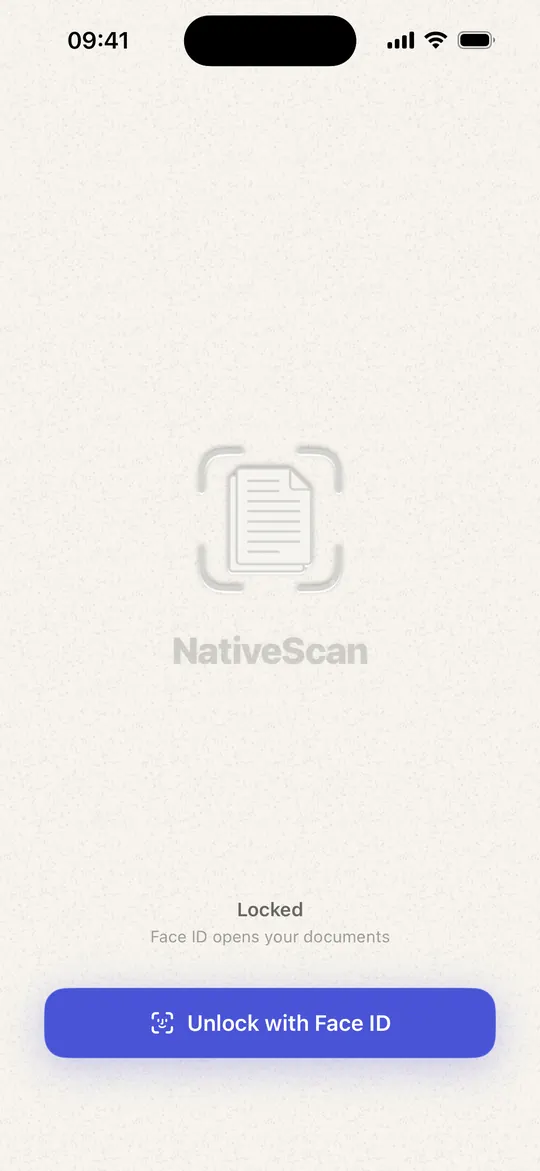
- Face ID lock and offline search inside your scans
- 5 AI names and 3 Recall chats a week
- Ads
Pro
Everything above, plus:
- No ads, anywhere
- Unlimited AutoName and Recall
- AutoSort — the automatic filing
- Searchable text inside exported PDFs and DOCX
- Key dates across your whole library (free covers your two newest)
- Reminders before a deadline lands
Pro is an auto-renewing subscription, weekly or yearly. The yearly plan opens with a 7-day free trial. Prices show in the app in your own currency; cancel any time in your Apple ID settings.
Start with whatever’s on your desk.
Scan one thing and see where it lands.
Support
Free vs Pro at a glance
What every NativeScan user gets, free
Unlimited scanning, unlimited saved documents, edge auto-detection, export as JPEG, PDF or DOCX, category folders (Receipts, Invoices, Contracts, Medical, Identity, Financial, Legal, Work, Personal, Other), your own custom folders, Face ID / Touch ID app lock, merge, sign, passport & ID photos, and on-device search. AI assistance is included with a weekly quota.
What NativeScan Pro adds
No ads, ever. Unlimited AutoName (AI-suggested document titles). Unlimited Recall (ask a question and the AI answers using your scanned documents). AutoSort (AI smart-folder sorting) unlocked. Searchable text inside exported PDFs and DOCX unlocked. Key dates found across your whole library instead of just your two newest documents, plus date reminders. Pro is one auto-renewing subscription with a weekly plan and a yearly plan; the yearly plan starts with a 7-day free trial for first-time subscribers.
Frequently Asked Questions
How do I scan a document?
Tap the scan button on the home screen to open the camera. Point your iPhone at the document — NativeScan detects the edges automatically. Tap the shutter to capture a page, repeat for additional pages, then tap Done. You can review, crop, rotate, and reorder pages before saving.
What export formats are supported?
All users can export as JPEG (image). NativeScan Pro unlocks searchable PDF (with an OCR text layer so other apps can search inside the document) and DOCX (Microsoft Word, editable). Tap the share icon on any document to choose a format.
What are AutoName, AutoSort, and Recall?
These are three of NativeScan's five AI features.
- AutoName generates a short title for a document from a page image. Free users get 5 per week; Pro is unlimited.
- AutoSort picks a category for a document (Receipts, Invoices, Medical, Identity, etc.) so it lands in the right smart folder automatically. AutoSort is a Pro feature.
- Recall lets you ask a question and get an answer based on the text in your scanned documents. Free users get 3 conversations per week; Pro is unlimited.
All three of these features send the relevant content to a third-party AI service for processing — see the AI Use Disclosure for what is and isn't transmitted, and how to decide whether a document is appropriate to scan with an AI-powered app.
How are my AI quotas counted?
The free quota resets every 7 days on a rolling basis. You can see your remaining AutoName and Recall credits for the week inside Account → AI Usage. Pro removes both quotas.
Why is the free plan limited at all?
AI features cost real money to run, so we cap free usage at 5 AutoName and 3 Recall requests per week. AutoSort and the searchable text layer inside exports are also Pro-only. Everything else — scanning, saving, organising into folders, JPEG export, app lock, search — is unlimited on the free plan and not gated by a paywall.
How do I upgrade to Pro?
Tap the Pro button on the home screen, on the AutoSort prompt, or when you turn on searchable text for an export. You'll see two subscription options: a weekly plan and a yearly plan. The yearly plan begins with a 7-day free trial for first-time subscribers; you can cancel any time during the trial without being charged.
How do I restore a previous Pro purchase?
If you've subscribed before and re-installed the app or switched devices, open the Pro screen and tap Restore Purchases. Make sure you're signed into the same Apple ID you used to subscribe.
How do I cancel my subscription?
Open the iOS Settings app → tap your name at the top → Subscriptions → NativeScan → Cancel Subscription. You can also manage it from the App Store app (your profile photo → Subscriptions). Cancellation takes effect at the end of the current billing period; we can't issue partial refunds for unused time.
Where are my scanned documents stored?
All scanned documents are stored locally on your iPhone. NativeScan does not keep a server-side copy and does not sync documents between devices. When you use an AI feature, the relevant content is transmitted for processing — see our AI Use Disclosure for details.
Can I back up my documents?
NativeScan itself does not perform backups, and we have no ability to recover lost data. Export the documents you care about as JPEG, PDF, or DOCX through the share sheet and store copies in iCloud Drive, Files, Photos, email — wherever you trust. If your device is lost or wiped and you haven't exported a document, it's gone.
Will my documents sync to my iPad or my Mac?
No. NativeScan does not currently sync documents across devices. Each device's library is independent. If you need a document on another device, export it and share it manually.
How do I delete a document?
In the Scanned Docs list, swipe left on any document to reveal Edit / Rename / Delete actions. Tap Delete to remove it permanently from your device.
How do I delete all of my data?
Because NativeScan stores everything locally, deleting the app from your iPhone removes all scanned documents, custom folders, and app preferences. There is no server-side account to delete. If you'd like, you can also clear individual documents in-app first.
How do I enable Face ID / Touch ID lock?
Open Account → Privacy & Security and turn on App Lock. The app will require Face ID or Touch ID every time you open it (or after a short background period). The biometric check is handled entirely by iOS — NativeScan never sees your face or fingerprint data.
Does NativeScan use AI?
Yes — in five places: AutoName, AutoSort, Recall, automatic key-date extraction, and automatic Recall suggestions. All are powered by a third-party large language model (Google Gemini) accessed through a secure proxy we operate on Cloudflare. Several of them run automatically in the background, so content from a document may be sent for processing as soon as you scan it. AI processing is integral to NativeScan and cannot be separately disabled. By installing the app you agree to it as described in the AI Use Disclosure, Terms of Service, and Privacy Policy. AI output can be wrong — never rely on it for legal, medical, financial, immigration, or other important decisions.
How does the app find due dates and expiry dates?
NativeScan first looks for dates entirely on your device. If it doesn't find any, it sends the document's recognised text to the AI to look more carefully. Found dates appear on the Home dashboard — free covers your two newest documents, Pro covers everything. Treat extracted dates as a convenience, never as your only reminder. A date can be misread, attached to the wrong thing, or missed completely. Always verify against the original document and keep important deadlines somewhere you control.
Can I get reminders for those dates?
Pro subscribers can turn on date reminders in Account. They're scheduled locally on your device — nothing is sent to a server, and we can't see them. Note that the reminder text includes the document's name, which iOS may show on your lock screen; if your document names are sensitive, either leave reminders off or set iOS to hide notification previews when locked. Reminders can also be delayed or suppressed by Focus modes, Low Power Mode, or your notification settings, so please don't rely on them for anything critical.
What data does NativeScan collect about me?
Very little, and none of it identifies you. The app sends one anonymous "app opened" signal per hour containing a random ID it generated for itself, the app version, and your iOS version — that's how we count how many people use NativeScan. It is not your advertising ID or device ID, it exists nowhere else, and deleting the app destroys it permanently. Separately, our server records technical failures (error codes and timestamps, no content and no IDs) so we can spot outages. Free users also see Google AdMob ads, and Google does its own data collection under its policies. Full detail is in the Privacy Policy.
Is my voice recorded when I use Recall?
When you dictate a question, the app uses Apple's speech recognition. Depending on your device, language, and iOS settings, Apple may process that audio on its servers rather than on your device — that's Apple's system, governed by Apple's privacy policy. We never receive the audio itself, only the resulting text. If you'd rather no audio ever left your device, just type your Recall questions instead.
Does NativeScan show ads?
Free users see ads served by Google AdMob — a banner on the document list and an occasional full-screen ad after exporting. Pro subscribers see no ads anywhere in the app. Advertising preferences (including personalised-advertising consent) are managed through iOS Settings and Apple's App Tracking Transparency prompt.
I lost data after an iOS update / device wipe. Can you help?
Unfortunately no — NativeScan does not keep server-side copies and cannot recover data once it has been removed from your device. We strongly recommend exporting any important documents through the share sheet, and enabling iCloud Backup in iOS Settings so your device backups include the app's data.
What devices and iOS versions are supported?
NativeScan is built for iPhone and requires a recent version of iOS. It uses native iOS document-scanning, OCR, and speech-recognition frameworks, so it benefits from the latest iOS improvements automatically. There is no separate iPad or Mac app at this time.
I found a bug or have a feature request.
Email us at nativescan.tool@gmail.com with a short description and, if you can, a screenshot or screen recording. We read every message.
From the studio
What we’re building.
NativeScan: PDF Scanner AI
Scan a document and it names itself, files itself and remembers its dates. Utilities, iPhone.
INP Itera
The next app out of the studio.
About
Lifestyle iOS apps that feel native.
Native Apps Team is one person in Toronto. Everything is SwiftUI, on-device where it can be, and honest about it where it can’t. NativeScan is the first one out; INP Itera is next.